The guide
What yunit does, and where.
This page goes through every part of yunit, where to find it and what each control does. The numbered marks sit on real screenshots of the extension.
01On the page
On the page
On any page in the language you are learning, while the extension is on.
yunit reads the page and picks a few words, then writes a small translation above each one. The density setting in the popup decides how many words it picks. The page itself is left as it was, and the translations sit above the line.
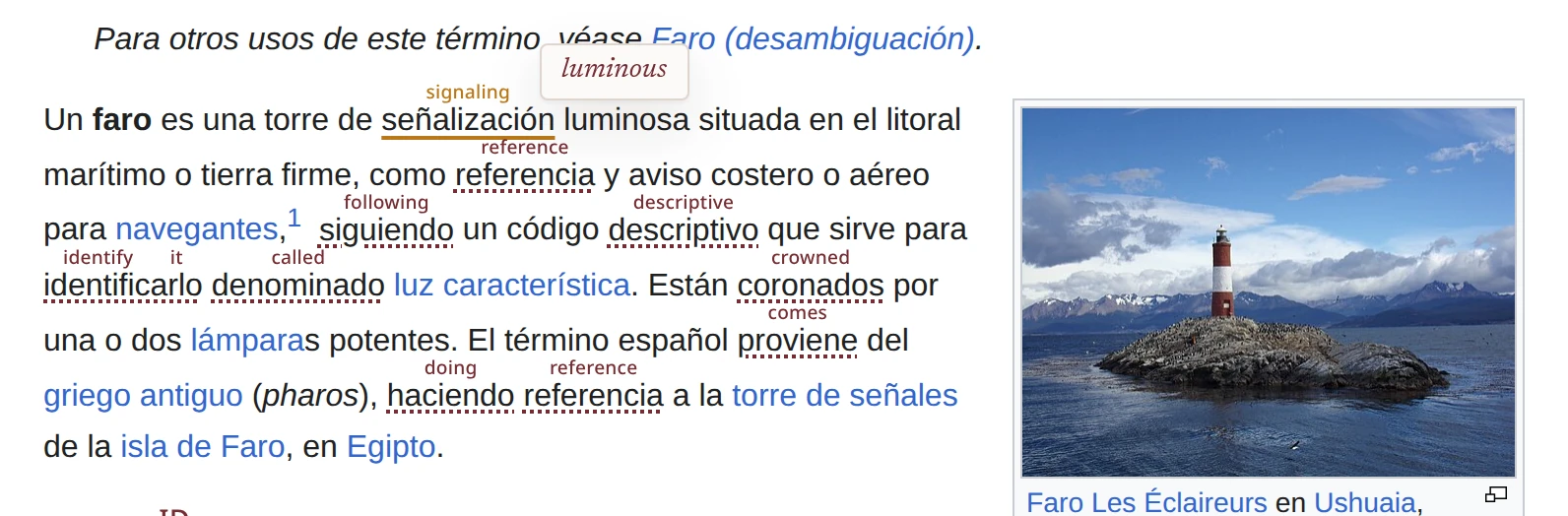
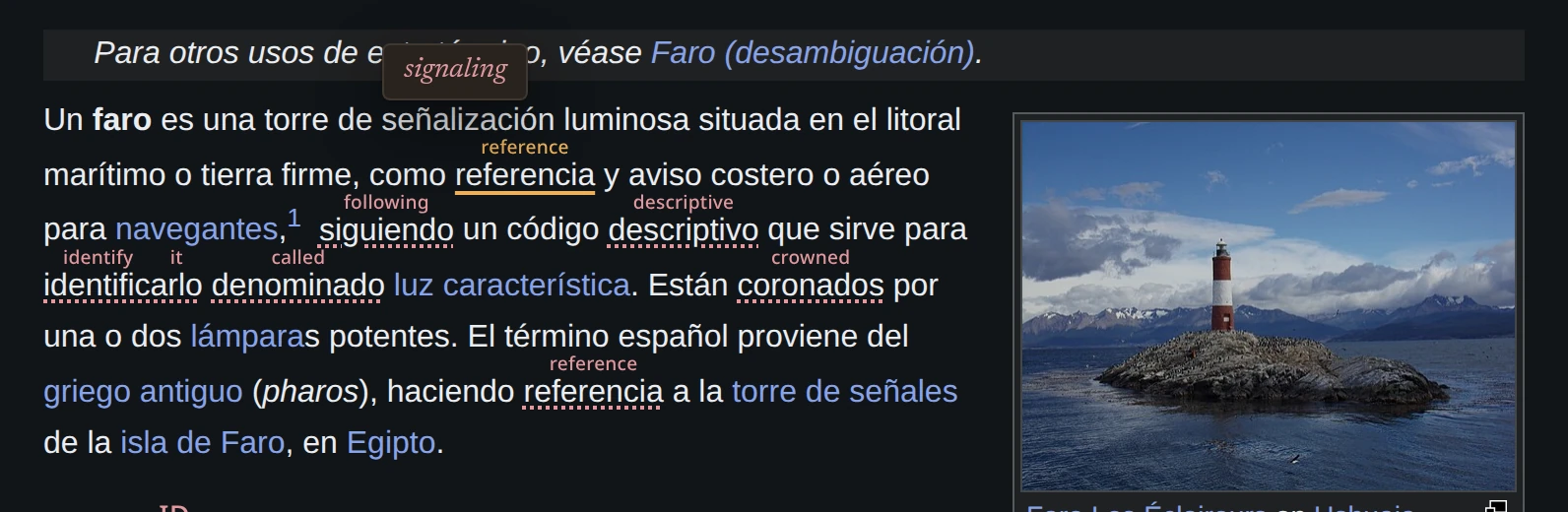
- A marked word. The translation is written above it, and the dotted line underneath shows that the mark is yunit’s. Resting on it plays the word, and clicking it opens the card.
- A kept word has a solid amber line. It will come up again in later reading, a little at a time, until you know it.
- If you hold Alt and rest on any word, marked or not, a quick translation appears and goes away when you move on.
02The word card
The word card
Opens when you click a marked word.
The card shows what yunit knows about the word. Keep adds it to your lexicon, and I know it tells yunit not to mark the word again.
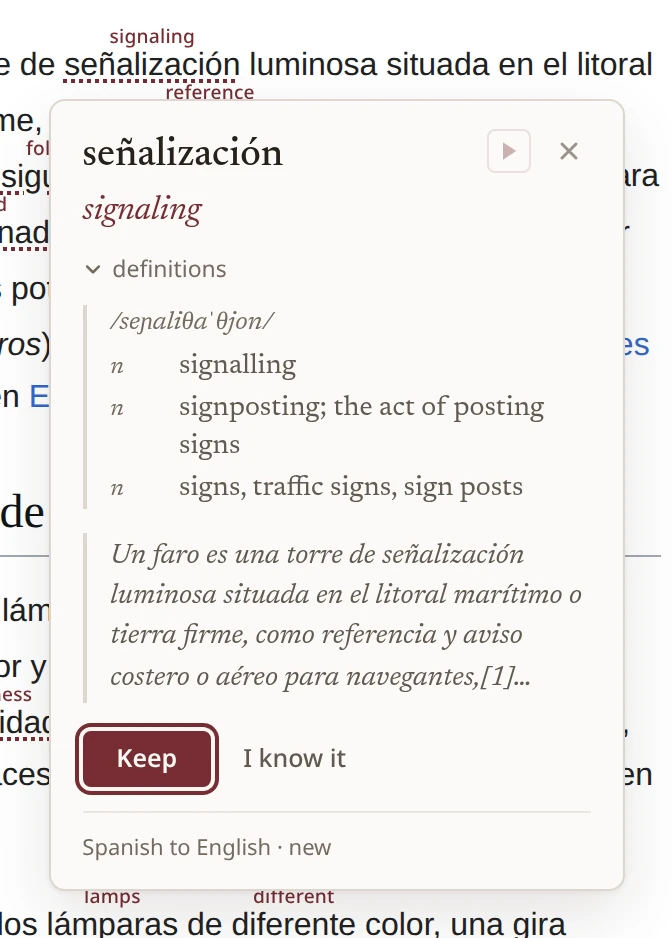
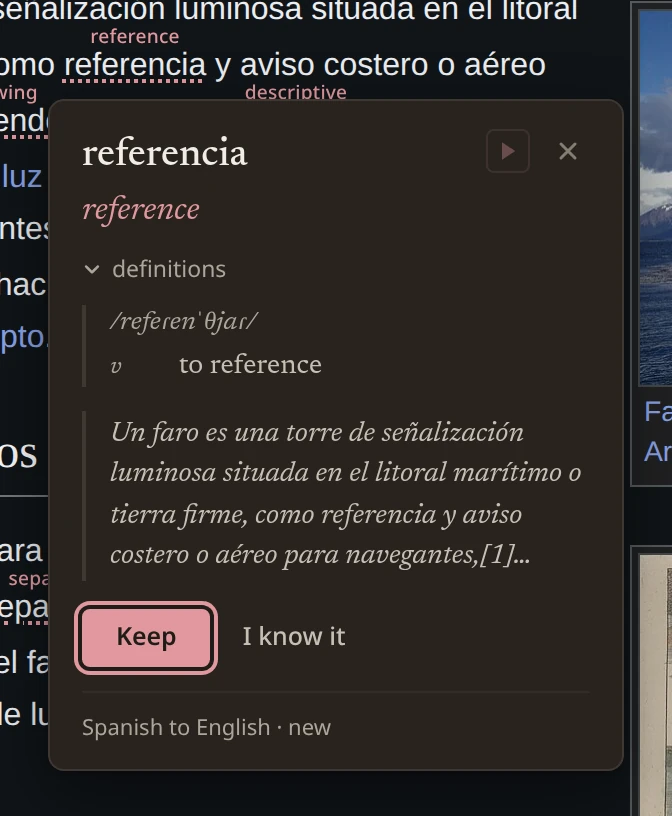
- The word as it appears on the page.
- Plays the word in a voice for its language.
- Closes the card. Escape does the same.
- The translation in your language.
- Opens the definitions.
- The definitions from the dictionary, with the pronunciation.
- The sentence you found the word in. It is saved together with the word.
- Keep adds the word to your lexicon, and it will come up again in later reading.
- I know it tells yunit not to mark this word any more.
- A line on where the word stands. Sharpen asks for a better translation of a difficult phrase, which is part of Premium.
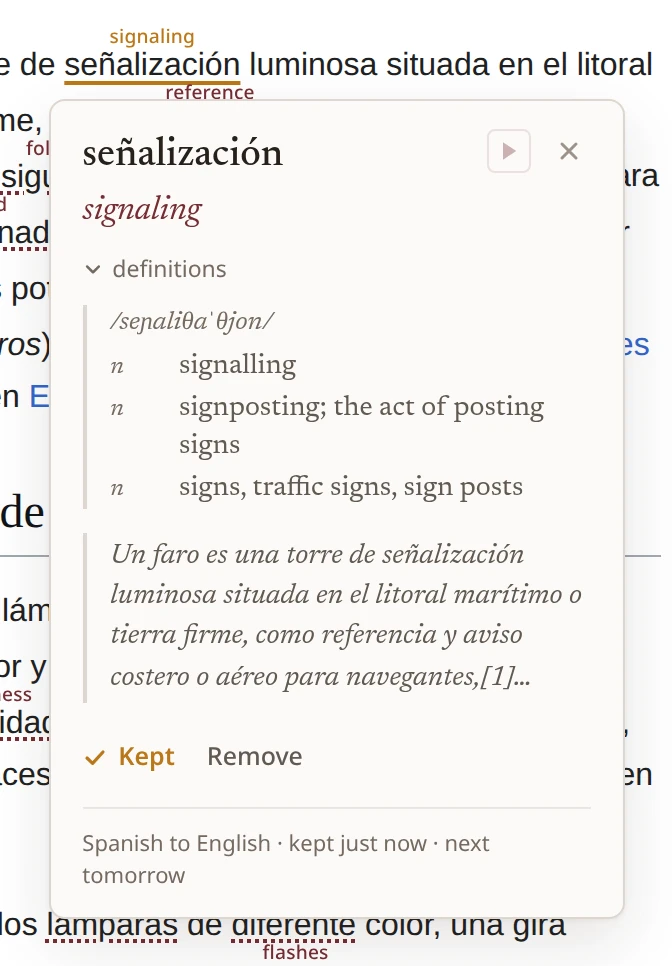
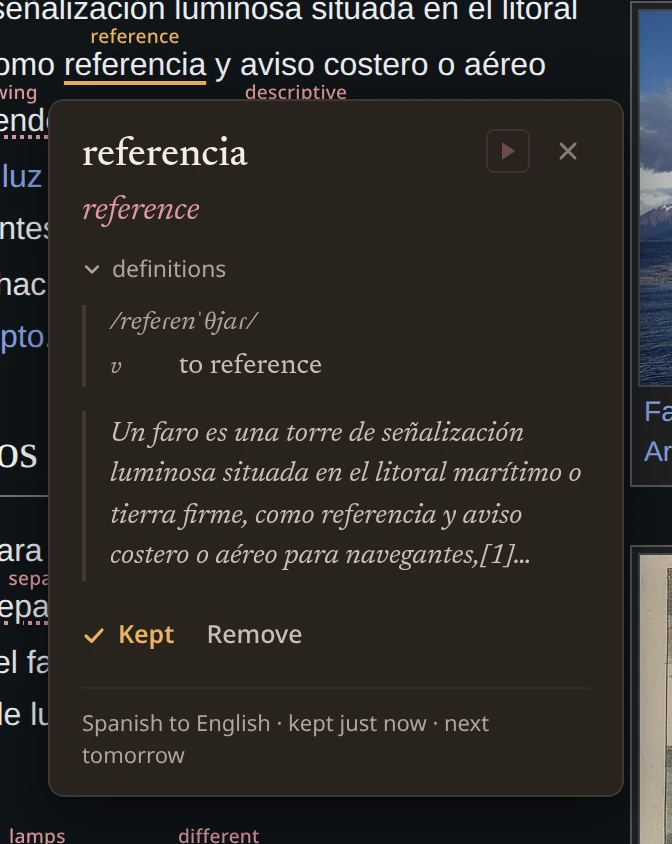
- Shows that the word is kept, when it was kept, and when it comes up next.
- Remove takes the word out of the lexicon again.
- Where the word stands now.
When a kept word comes up again to test you, the card opens without the translation, so you can try to remember it first.
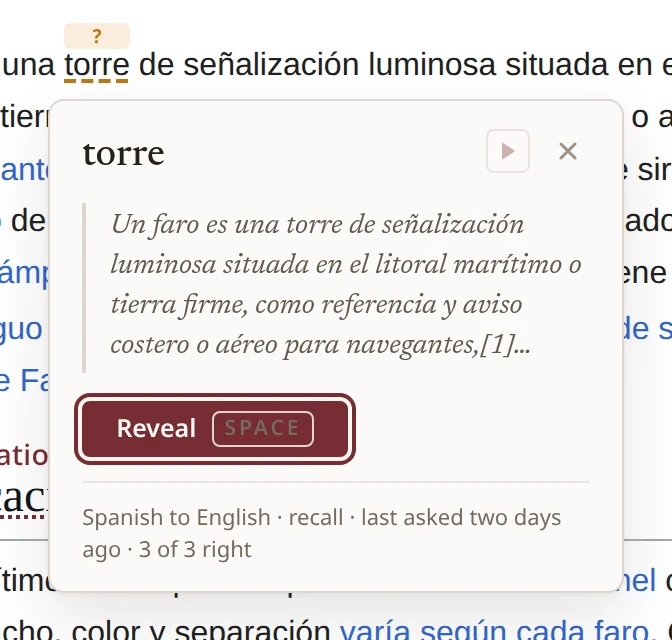
- The word on the page, marked without its translation this time.
- Reveal shows the translation. The space bar does the same.
- Says why the card looks like this, the word is due for a recall.
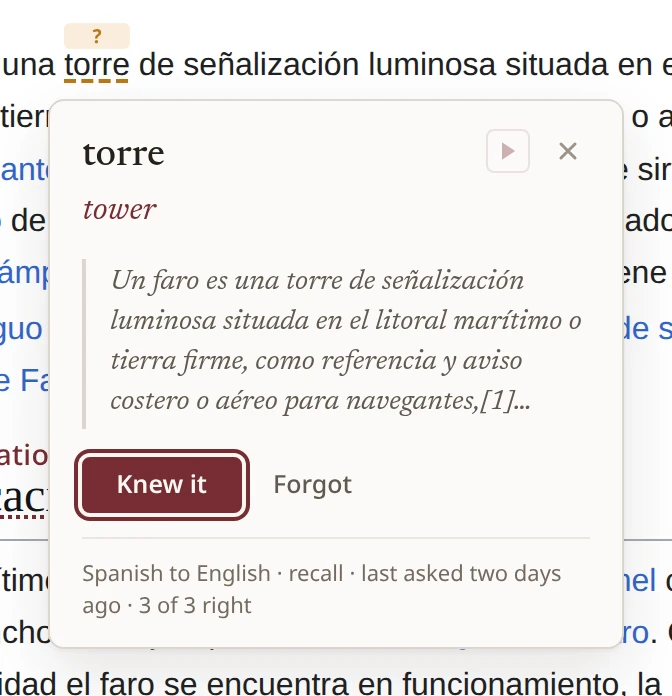
- The translation, once revealed.
- Knew it means the word will come up again later.
- Forgot means it will come up again sooner.
03A phrase
A phrase
Select any words on a page while Translate selection is on in the popup.
A selected phrase is translated as a whole, right where you are. You can keep it as one entry, and the unfamiliar words inside it can be kept along with it.
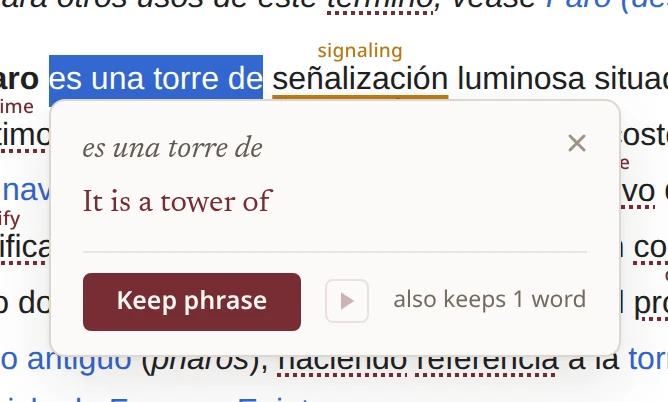
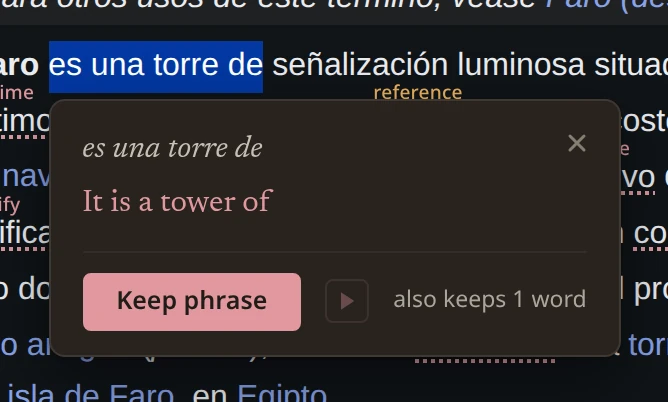
- The words you selected.
- The translation of the whole phrase.
- Keep phrase adds it to the lexicon as one entry.
- If Keep unknown words from phrases is on in the popup, each new word inside the phrase is kept as well, and this line says how many.
- Plays the phrase.
- Closes the card. Clicking anywhere else does the same.
04The popup
The popup
The yunit button in the browser toolbar.
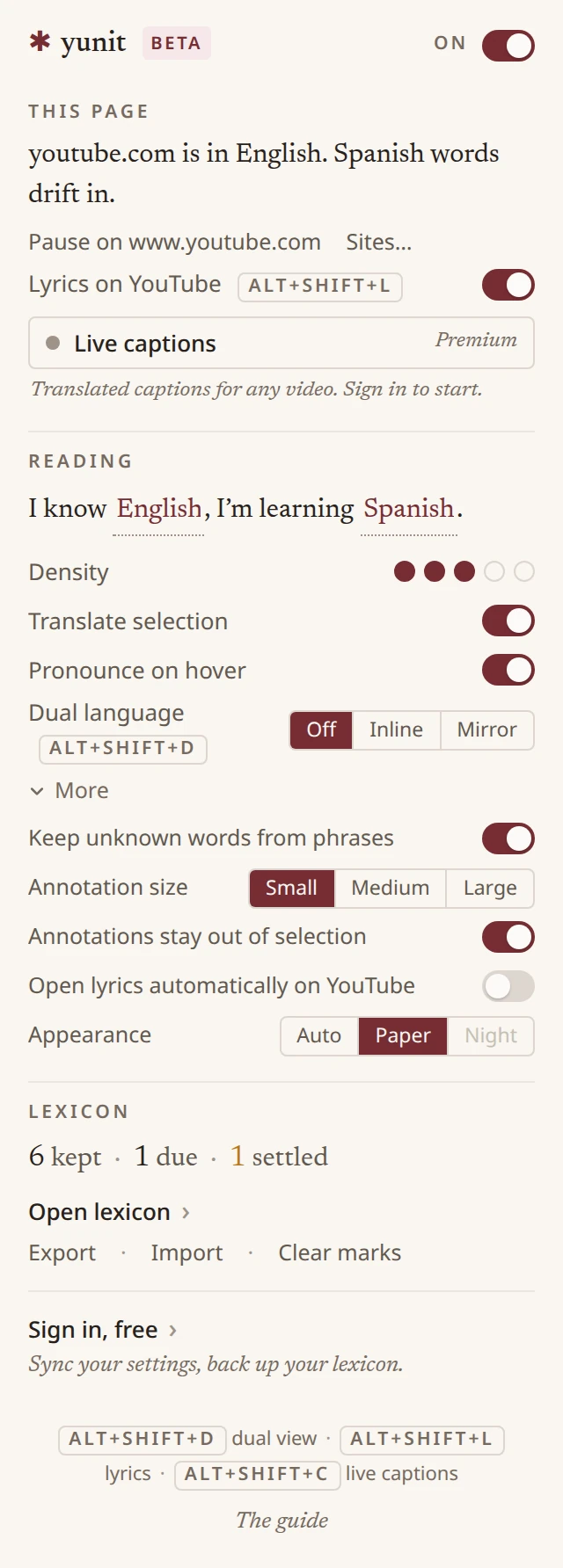
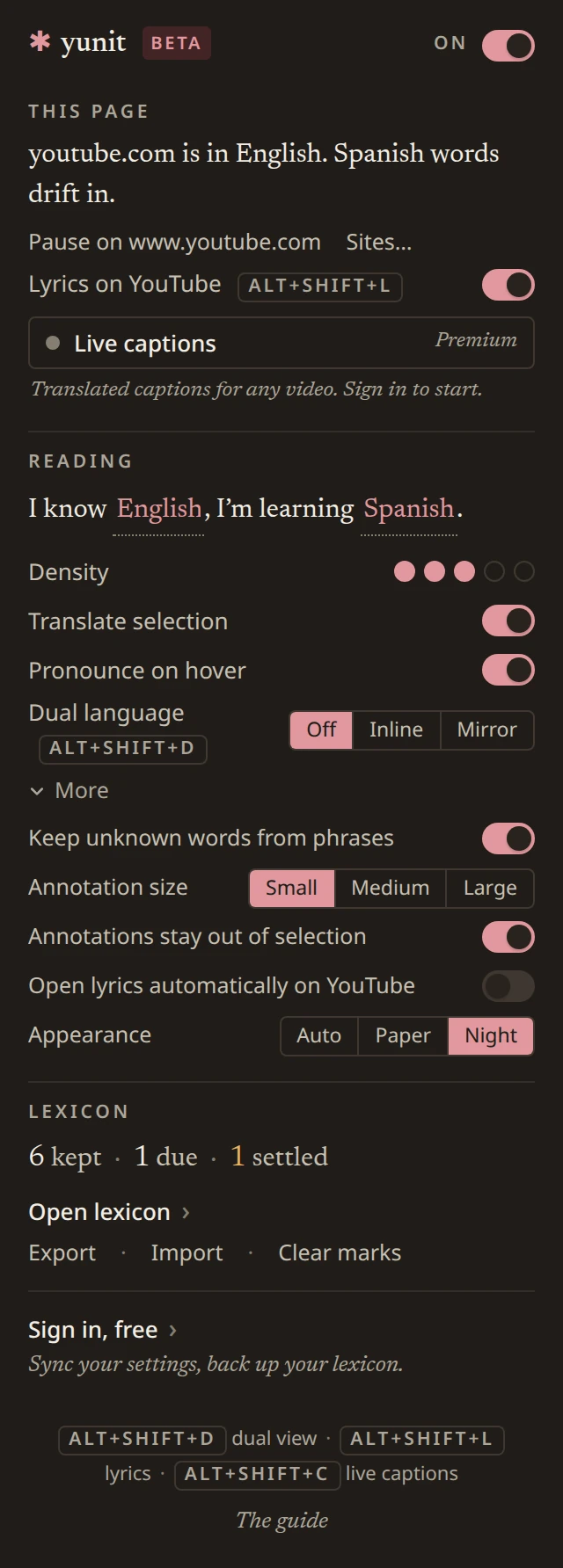
The popup opens on the page you are looking at and says what yunit is doing there. Your reading settings are underneath, and the ones you rarely change are folded under More.
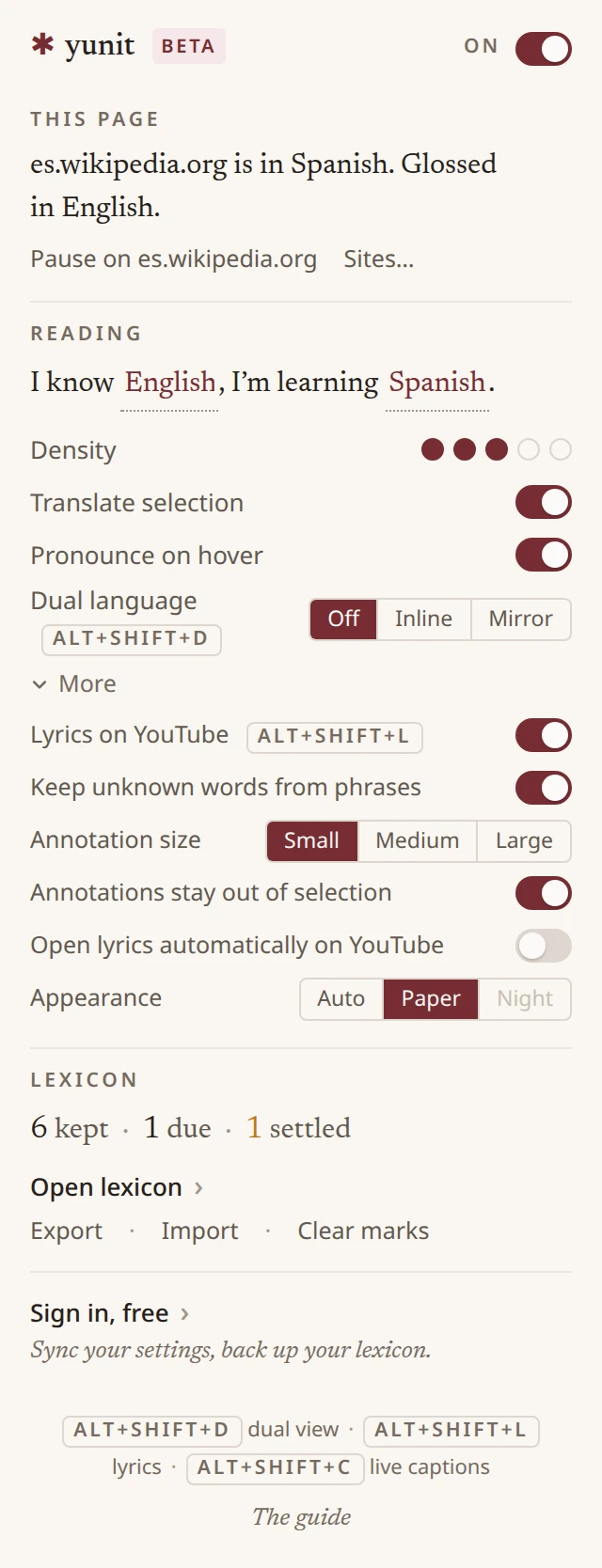
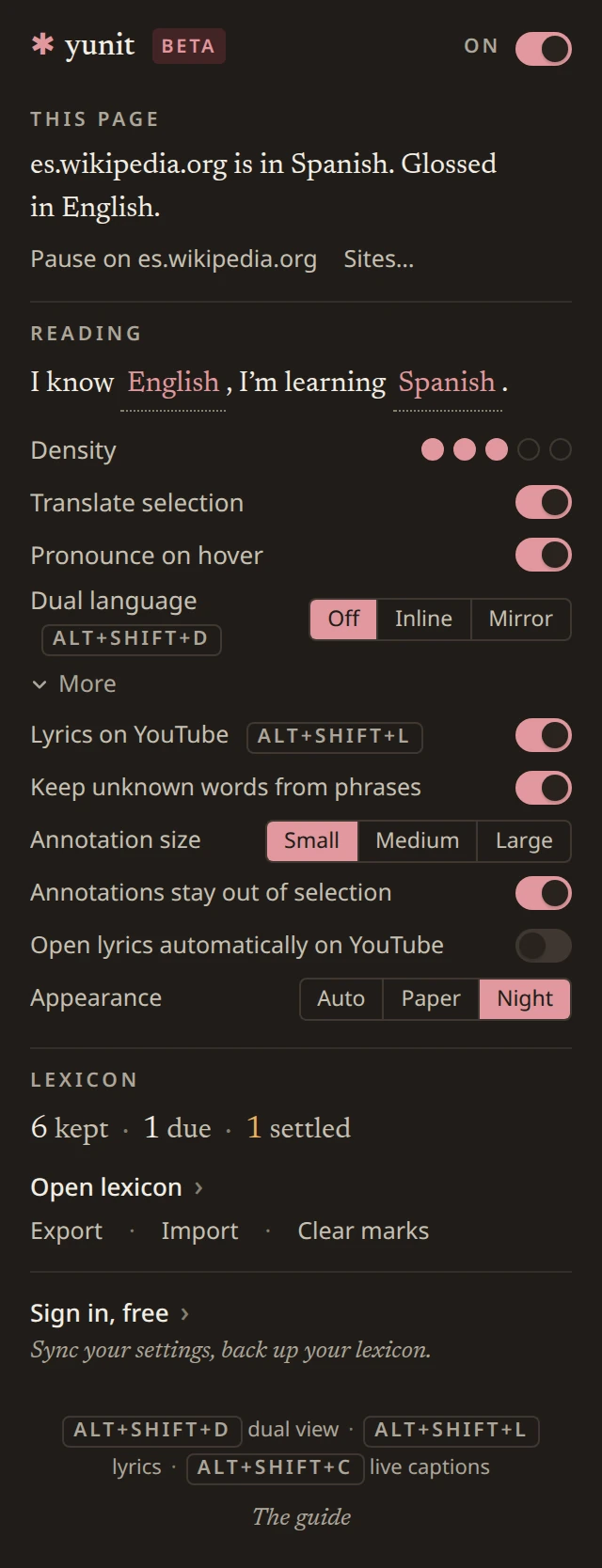
- The main switch. Turning it off stops yunit on every page until you turn it back on.
- A sentence about the page you are on, which language yunit sees there and what it is doing.
- Pauses yunit on this site only, and resumes it later. Useful for a site you read in your own language.
- Sites… opens the list of sites where yunit is paused, or the list of the only sites where it runs, depending on how you keep the list.
- Your two languages, written as a sentence. Change either one and every page follows.
- How many words get marked. One dot marks a word here and there, and five marks as many as the page can take. Turn it down when a page feels crowded and up when you want more.
- Translate selection. When it is on, selecting text opens the phrase card. Turn it off if you often select text for other reasons.
- Pronounce on hover. When it is on, resting on a marked word plays it. Turn it off in a quiet room.
- Dual language. Off, Inline, which puts the translation under each paragraph, or Mirror, which puts the translation next to the page. Alt+Shift+D switches it on any page.
- More opens the settings you change rarely.
- Lyrics on YouTube. When it is on, music videos get the lyrics panel. Alt+Shift+L opens it by hand.
- Keep unknown words from phrases. When it is on, keeping a phrase also keeps each unfamiliar word inside it.
- Annotation size. Small stays out of the way, and Large is easier to read from further back.
- Annotations stay out of selection. When it is on, copying text from a page does not copy the translations with it.
- Open lyrics automatically on YouTube. When it is on, the panel opens by itself when a song has lyrics.
- Appearance. Auto follows your system, and Paper and Night set it.
- How many words you have kept and how many have settled.
- Opens the lexicon.
- Export writes your lexicon to a file.
- Import reads one back in.
- Clear marks forgets which words were marked on this page, so yunit picks again.
- Sign in for free to sync your settings and back up the lexicon. Premium adds live captions, live sync and better translations.
- A link to this guide.
On a YouTube tab the popup has one more block.
- The YouTube block for the video you are watching.
- Dual subtitles on YouTube. When it is on, every video with captions shows each caption with its translation beneath. Alt+Shift+S switches it too.
- Live captions on and off, with the language pair and the state of the session. Once captions are running, a row underneath lets you show both streams, only the spoken line, or only the translation.
05The lexicon
The lexicon
Open lexicon, in the popup.
The lexicon is a book of the words you have kept, each with its meaning and the sentence you found it in. Words you have come to know are marked settled, and a review session goes through the words that are due.
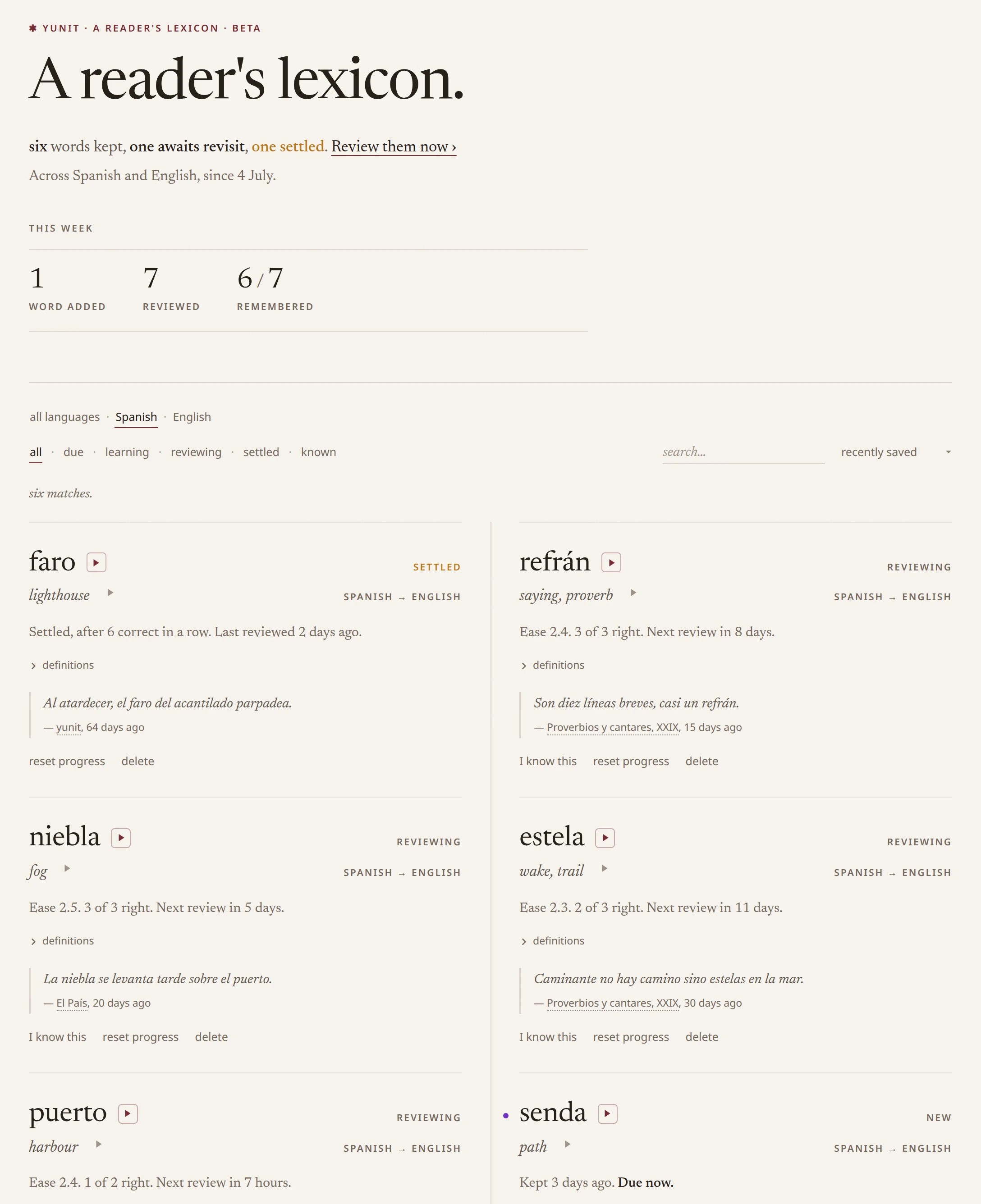
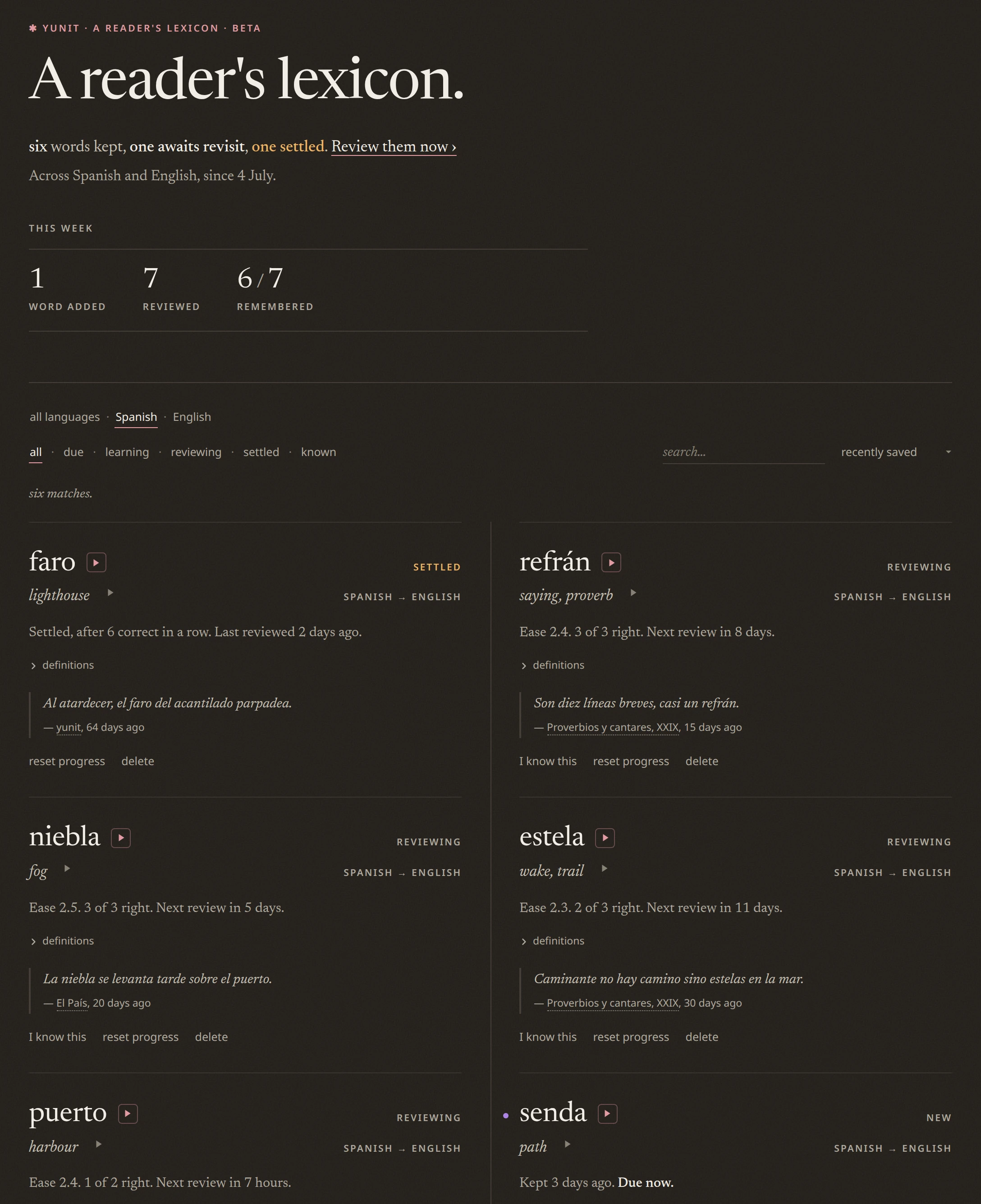
- The title.
- A sentence on how the book is doing.
- Review starts a session over the words that are due.
- How many words are learning, reviewing, settled and known.
- Shows one language at a time.
- Filters by where each word stands, learning, reviewing, settled or known.
- Searches the book.
- Sorts by recently saved, due first, hardest first or most encountered.
- One entry in the book.
- The word.
- Plays the word.
- Its meaning.
- The sentence you kept it from.
- Its record, how it has been answered and when it comes up next.
- Settled marks a word you have come to know.
- Reviewing marks a word that is coming up again.
- Opens the definitions.
- I know this takes the word out of the reviews.
- Reset progress starts its history again.
- Delete removes it from the book.
The foot of the book.
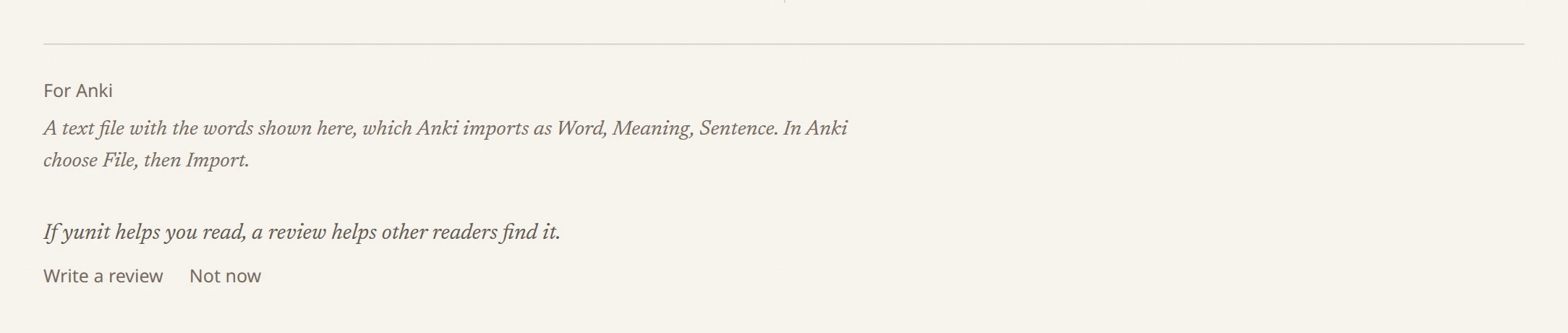
- For Anki writes the words shown as a text file Anki imports as Word, Meaning, Sentence. The chips and the search set which words go.
- Once, after fifty kept words, a line asks for a review in the store the extension came from. Not now sends it away for good.
06Dual language
Dual language
Any page, with Alt+Shift+D or the Dual language setting in the popup.
Dual language puts the translation next to the original. Inline places it under each paragraph, and Mirror opens the translation beside the page, paragraph by paragraph.
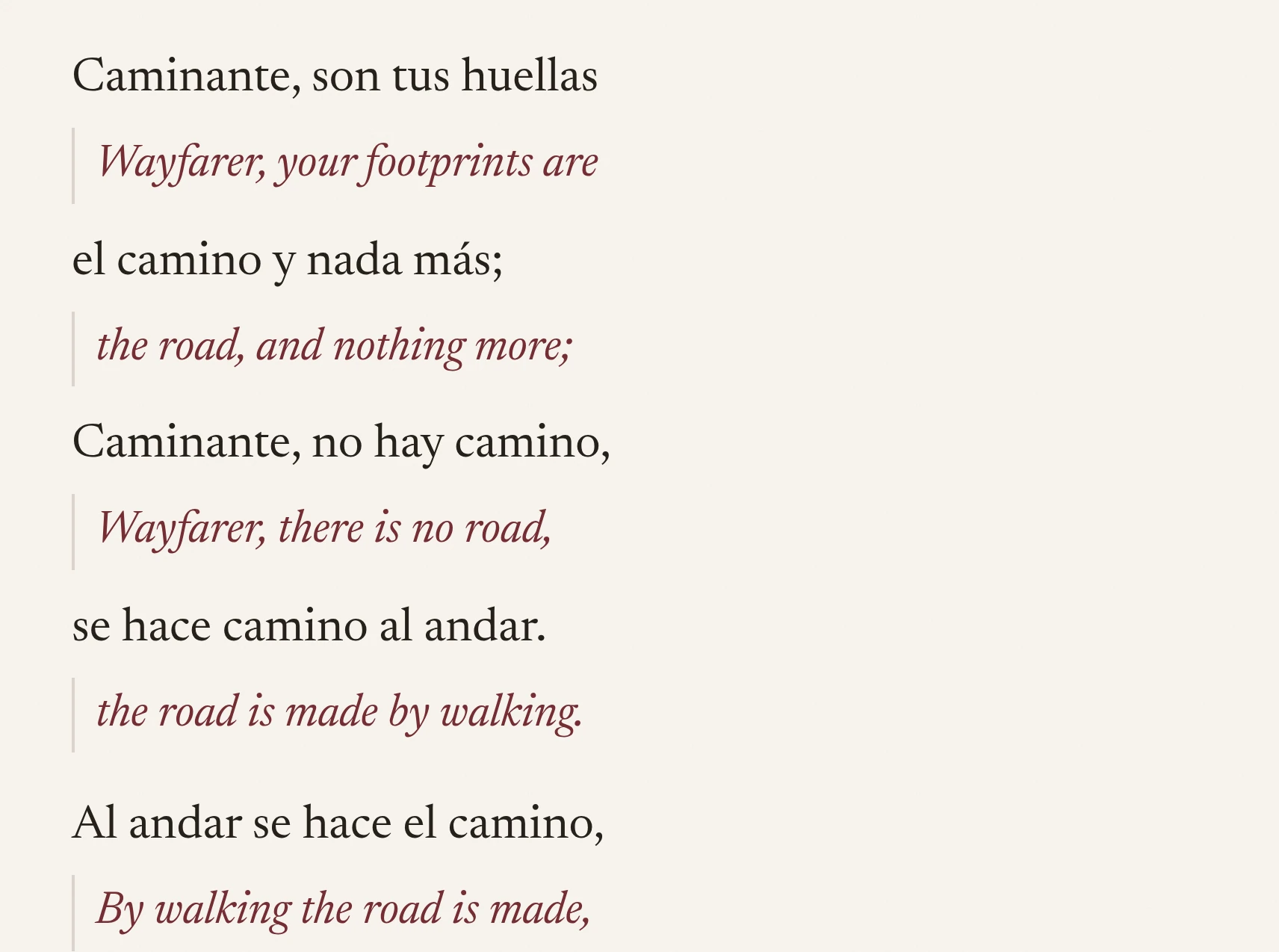
- A line of the page, as written.
- Its translation, under it.
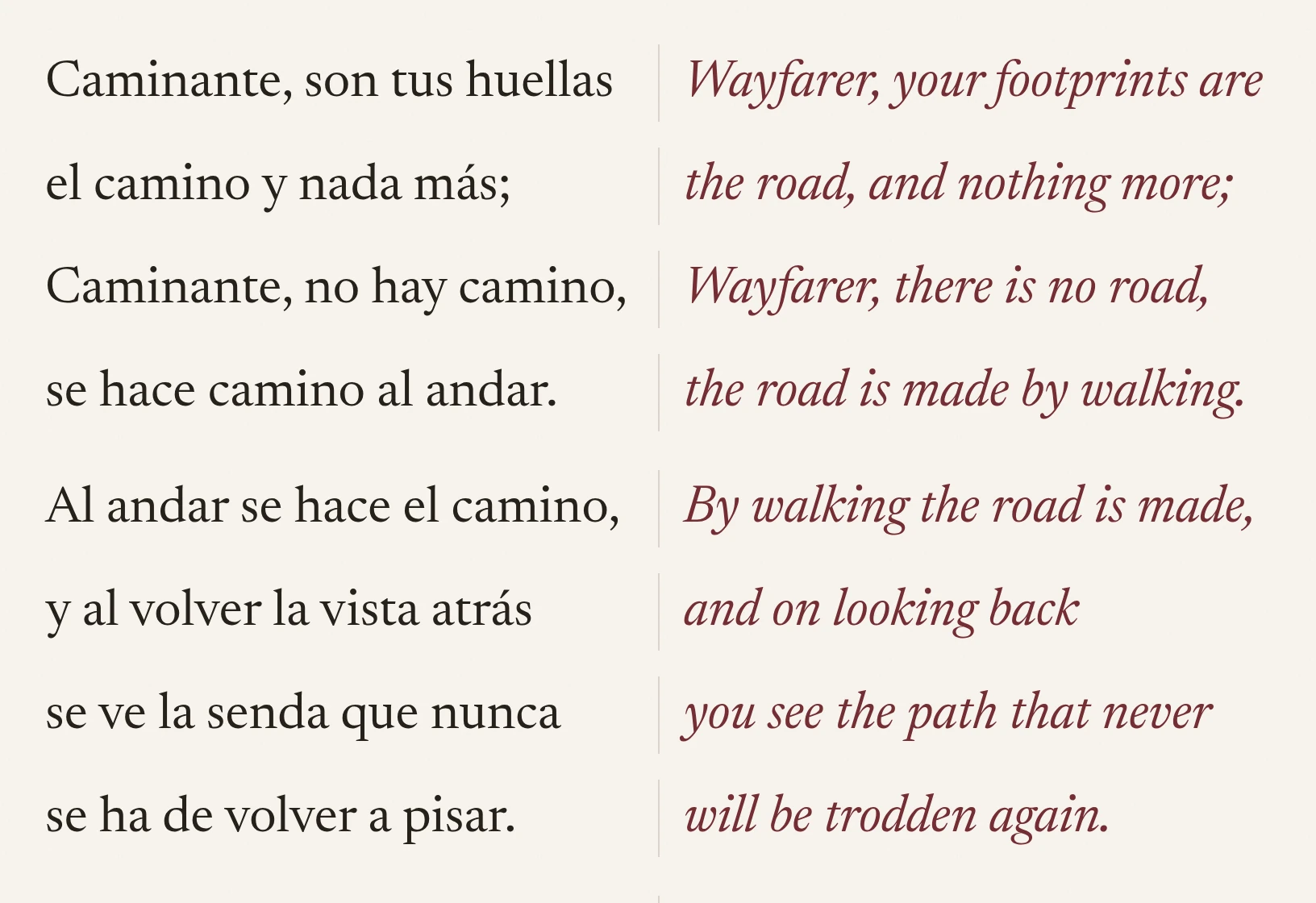
- The original, on the left.
- Its translation, beside it.
07Lyrics on YouTube
Lyrics on YouTube
Music videos on YouTube, when Lyrics is on in the popup, or with Alt+Shift+L.
The lyrics panel opens next to the video with the lines and their translations, and follows the song. The current line can also be shown on the video.
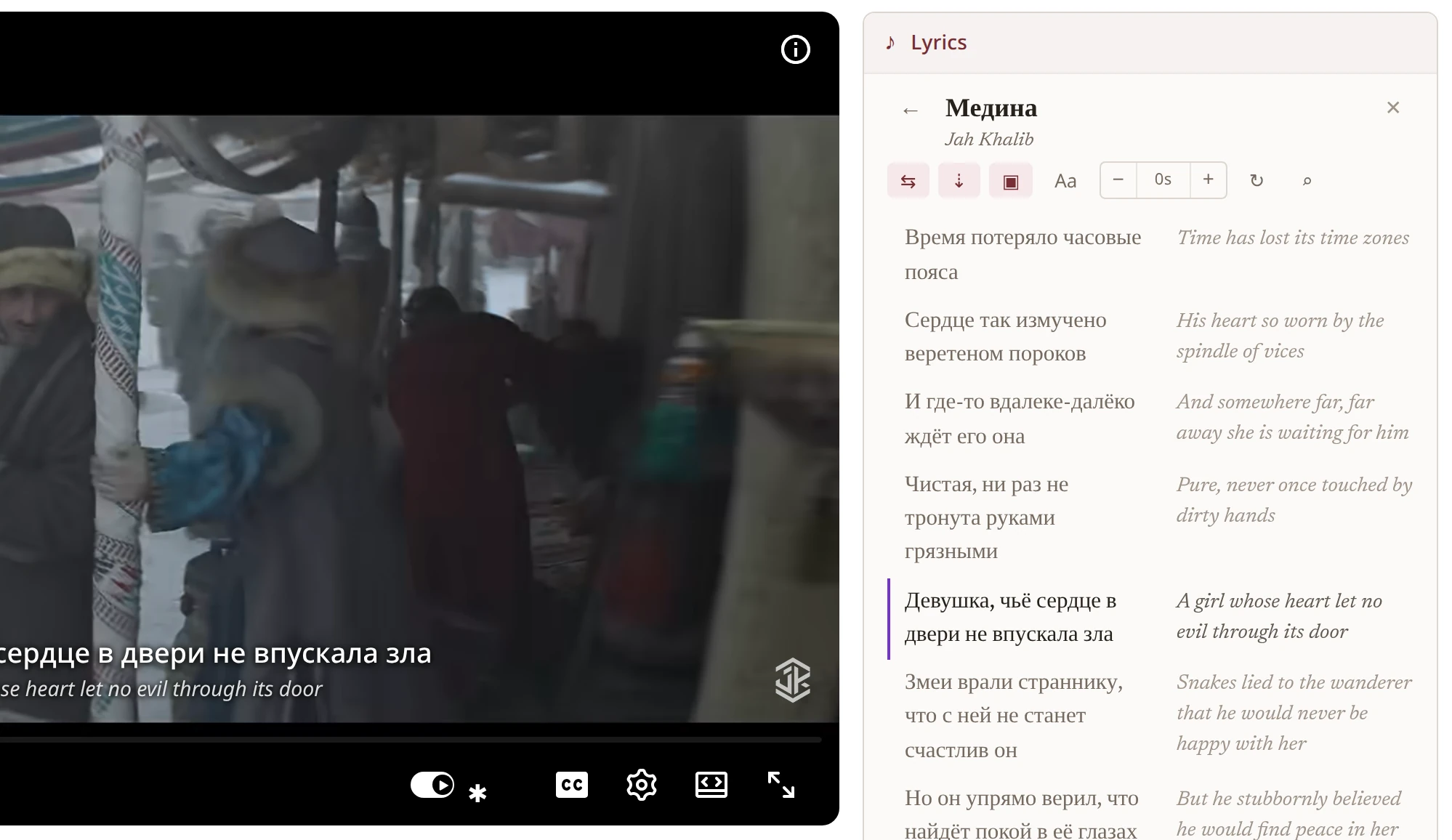
- The panel’s handle in the sidebar. Click it to open or close the panel.
- The song as it was matched, title and artist.
- Searches for another version of the song when the match is wrong.
- Moves the lyrics a second earlier or later until they line up with the voice.
- Auto-follow keeps the current line in view.
- Translation gloss, under each line or mirrored beside it.
- Show lyrics on video puts the current line and its translation over the picture.
- Overlay appearance, the colour, the size, and whether the next line is shown.
- A line with its translation underneath.
- The line being sung now.
- Closes the panel.
- The line shown on the video.
08Dual subtitles
Dual subtitles
Any YouTube video with captions, from the popup, the ✱ player menu, or Alt+Shift+S.
On a video that has captions, dual subtitles show each caption with its translation beneath it, translated on your device. Turn it on once and every captioned video has it. If YouTube opens a video with its captions off, yunit turns them on for you, once for that video.

- The caption, as YouTube shows it, in yunit’s lettering.
- Its translation beneath. On automatic captions it follows a moment behind the speaker, and it stays in place while YouTube is still writing the line.
09In the player
In the player
The ✱ button in YouTube’s player bar.
The player button opens yunit’s quick controls without leaving the video.
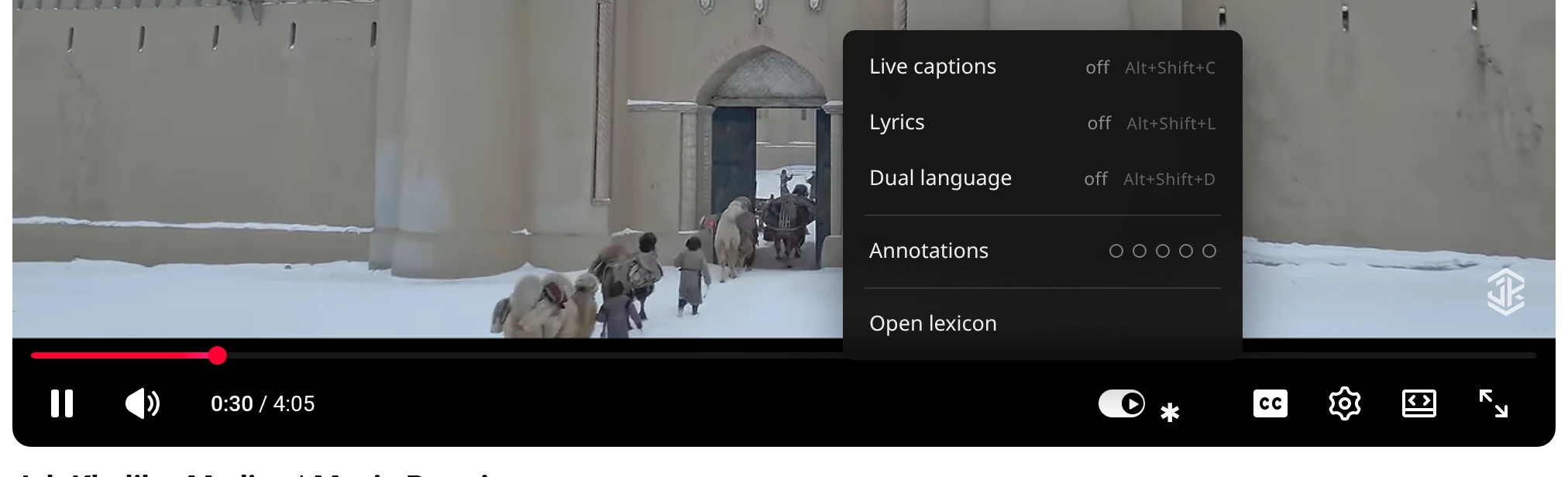
- The ✱ button. It lights up when something of yunit’s is on.
- Lyrics on or off for this video.
- Starts or stops live captions.
- Dual subtitles on or off. The row says why they are not showing when they are not: no captions on this video, captions you turned off on this video, or live captions or the lyrics overlay holding the video for now.
- Dual language for the page around the video.
- The density dots.
- Text on video sets the contrast, the ink and the size of everything yunit paints on the video: lyrics, live captions and dual subtitles, all at once.
- Opens the lexicon.
10Live captions
Live captions
Any YouTube video with speech, from the player button, the popup, or Alt+Shift+C. Part of Premium, on Chrome and Edge.
When a video has no subtitles you can read, yunit writes them live and translates them as they come. The captions are shown on the video, and the transcript builds up beside it, with times.
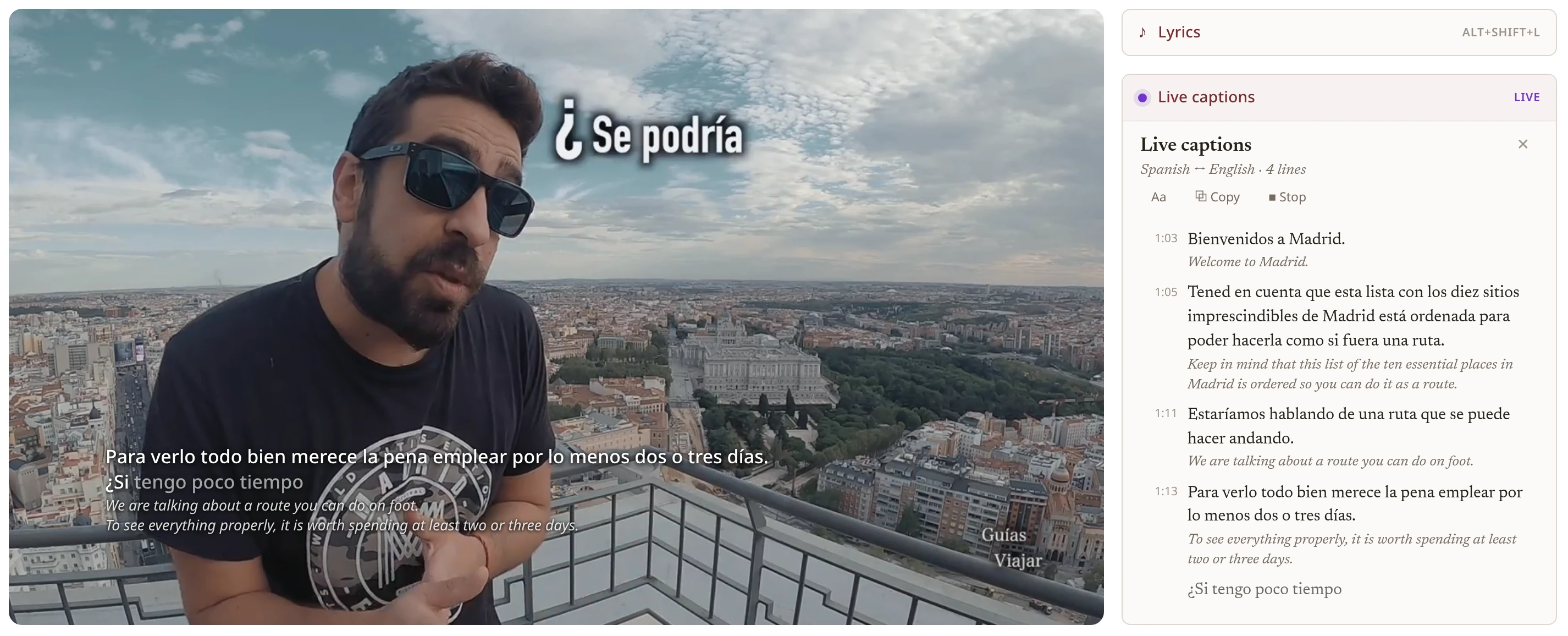
- The captions on the video, the spoken line above and the translation underneath.
- The panel’s handle, with the state of the session.
- Live captions, the language pair, and how many lines so far.
- Hides the panel. The captions keep running.
- Aa sets how the captions look, which streams to show, outline or plate, and the size.
- Copies the transcript.
- Stop ends the session. The transcript stays readable.
- A line of the transcript, the spoken line and its translation.
- The time, which jumps the video to that moment.
- The line being spoken now, still forming.
11Sites
Sites
Sites…, in the popup.
The sites page keeps the list of sites where yunit is paused, or the list of the only sites where it runs.
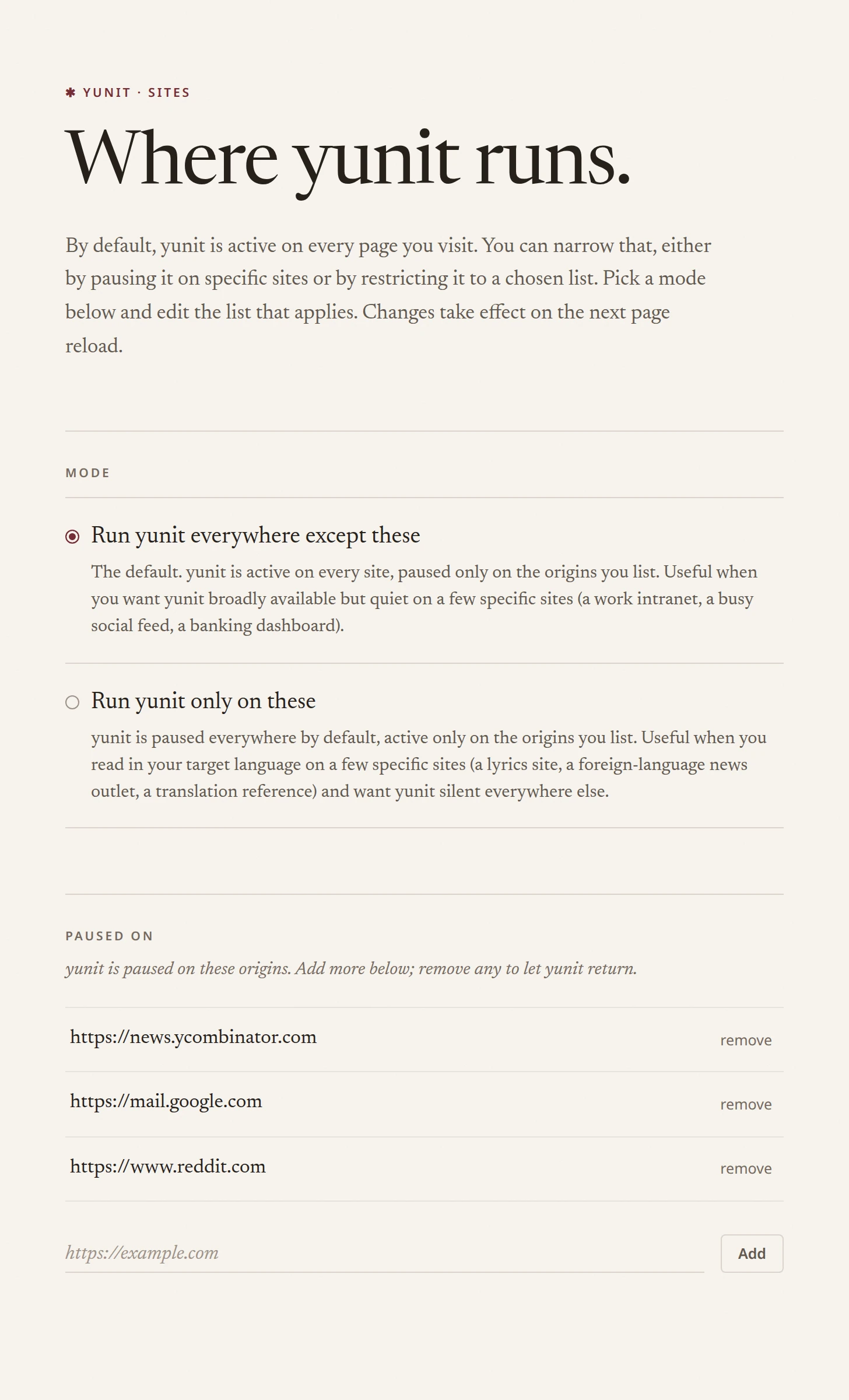
- The two ways of keeping the list.
- Everywhere except these sites. yunit runs by default and rests on the sites listed.
- Only these sites. yunit rests by default and runs on the sites listed.
- Adds a site by its address.
- The list.
- A site on the list.
- Takes the site off the list.
12The reading room
The reading room
yunit.app/read, with nothing to install.
The reading room does on one page what the extension does everywhere. Bring a passage, read it with the glosses, and keep words. They gather in the margin at the line where you found them.
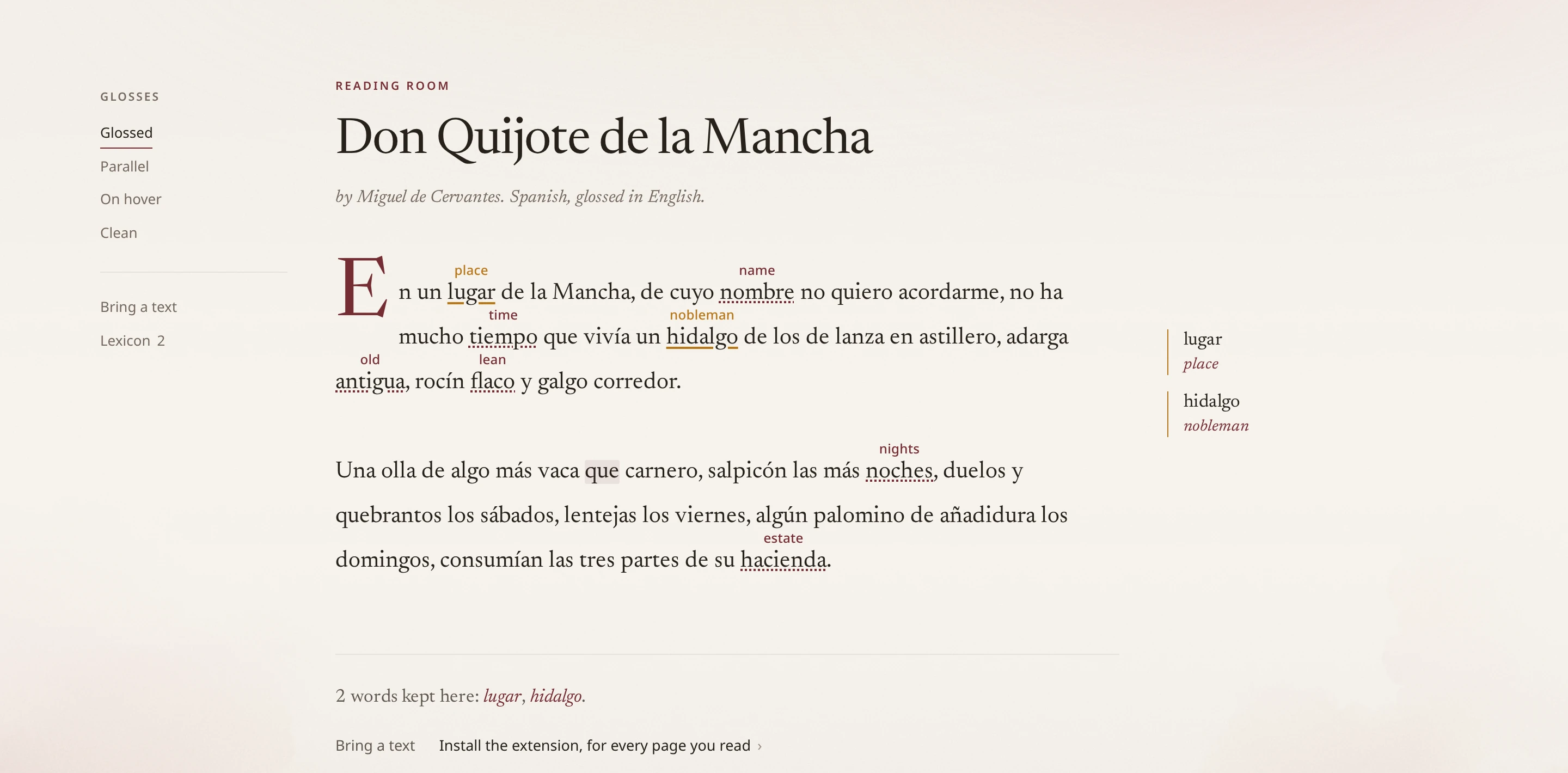
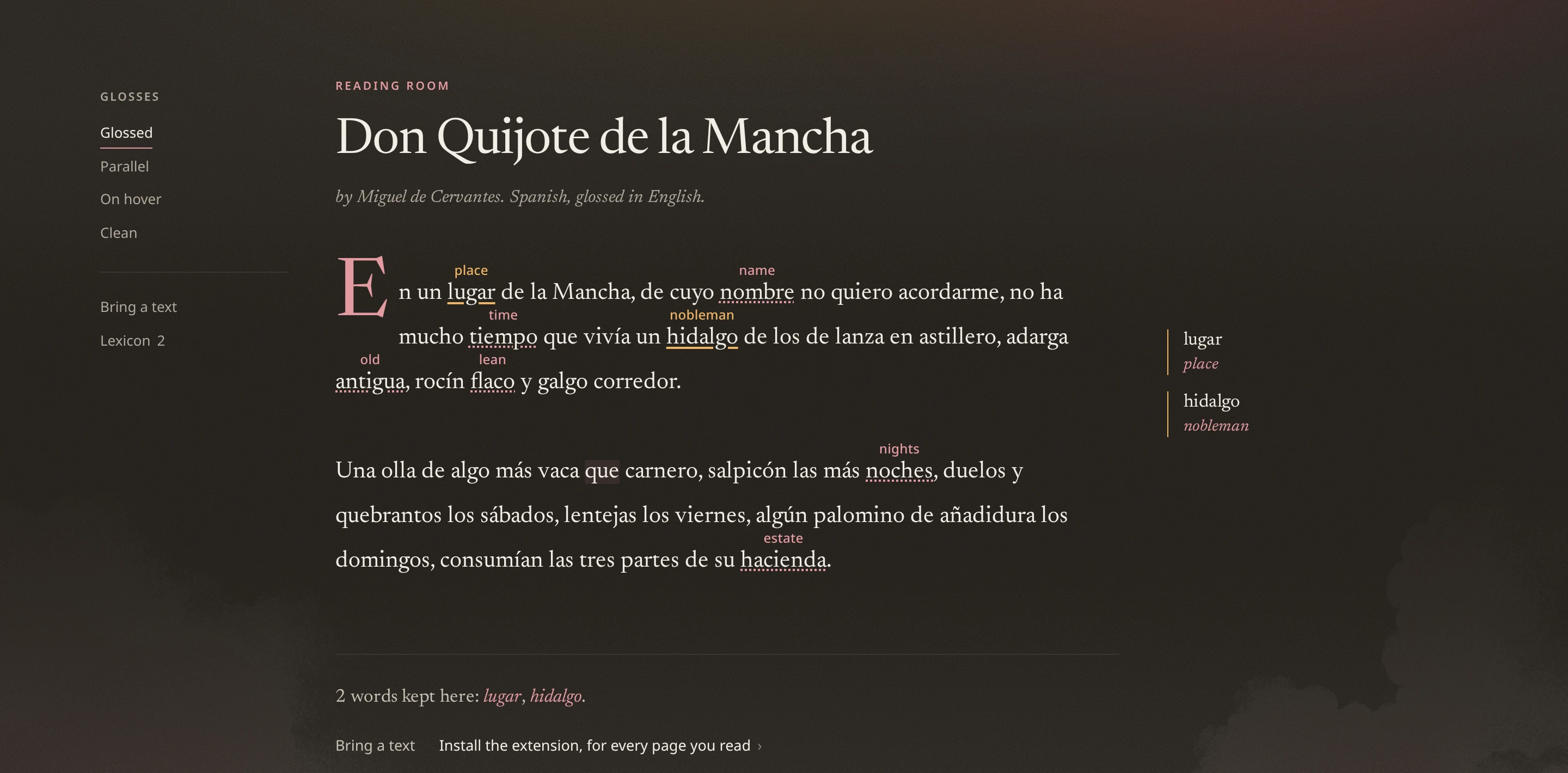
- Glossed, Parallel, On hover or Clean.
- Bring a text opens a blank page to paste into, a place for a link, a place for an EPUB or PDF from your computer, and a way to bring any page you are on.
- The words you have kept here, in this browser.
- A glossed word. Click it to open its card.
- A kept word in the text, with its amber line.
- The same word in the margin, next to the line where you found it.
- The end of the passage names the words you kept.
Bring a text opens a sheet with four ways in.
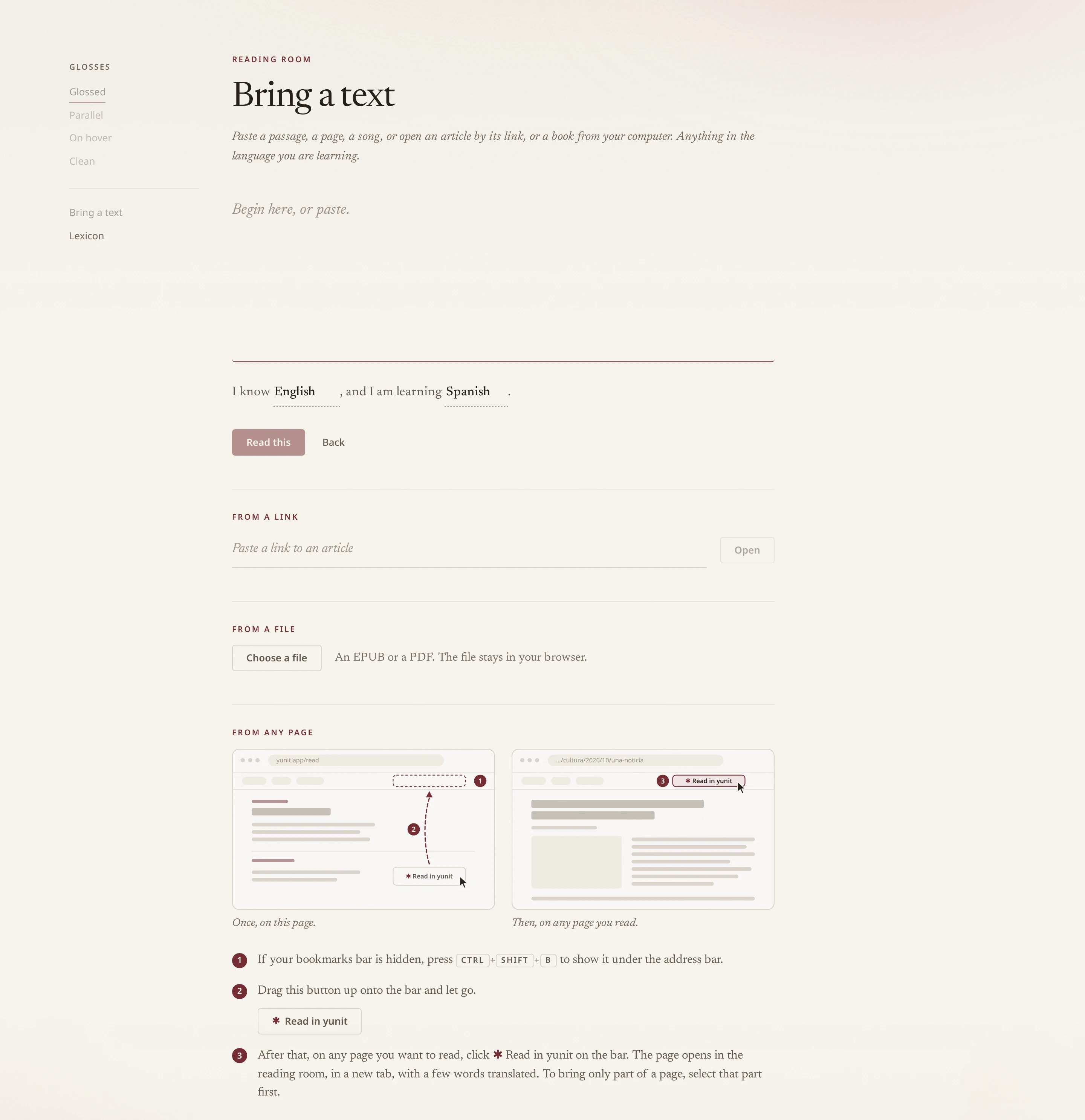
- The blank page. Paste a passage, a page or a song, and Read this.
- Read this opens what you pasted.
- From a link opens an article by its address. The page is read once and reduced to its text.
- From a file opens an EPUB or a PDF from your computer. The file stays in your browser.
- From any page puts ✱ Read in yunit on your bookmarks bar, in three drawn steps. Drag the button up to the bar once. After that, click it on any page to read that page in the room, or select a passage first to bring only that.
On an Android phone, From any page adds the reading room to your home screen instead. After that, share any page or passage to yunit, from your browser or any app, and it opens in the room.
A book arrives as chapters, one at a time.
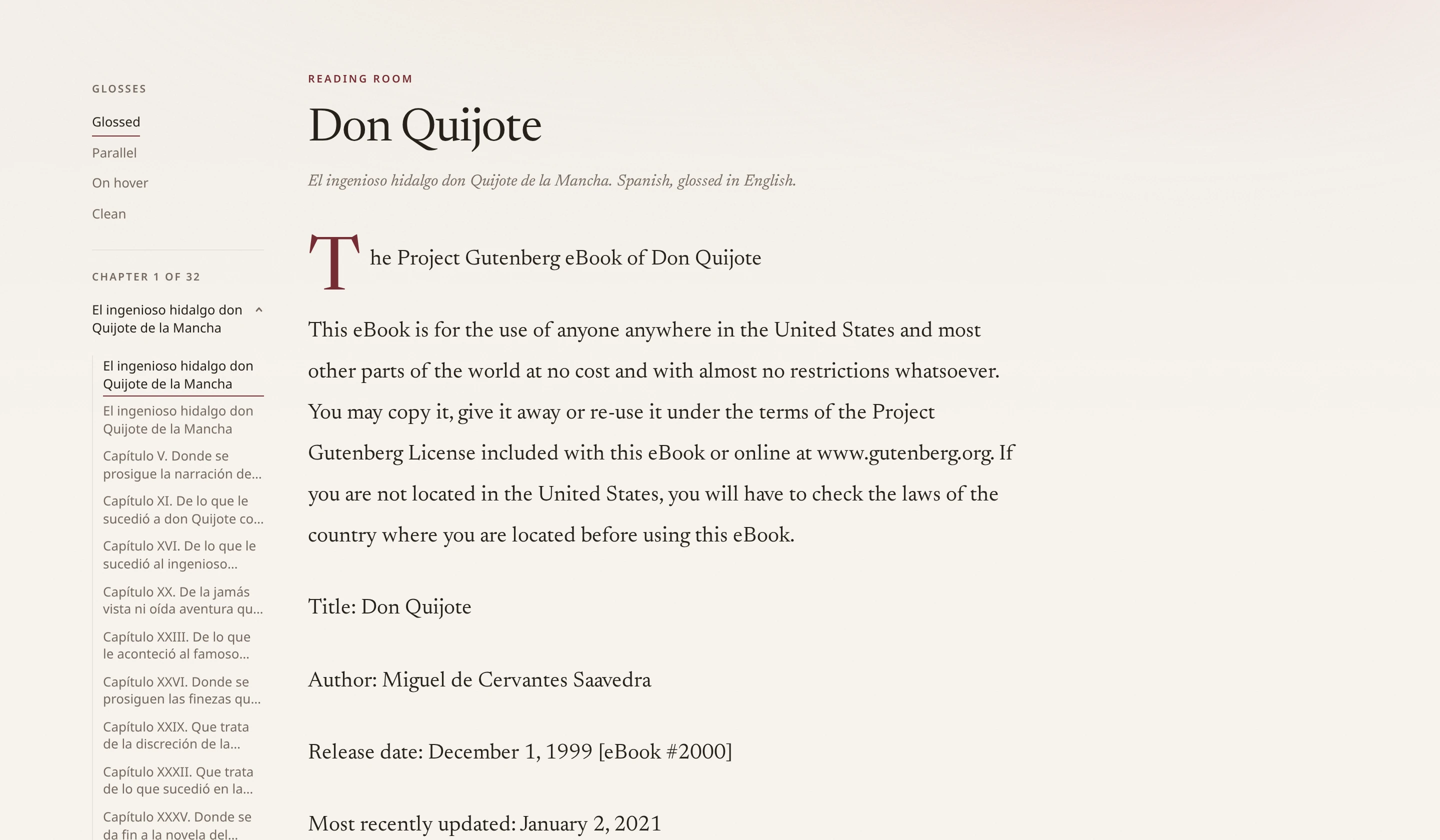
- Where you are in the book.
- The chapter you are in. Click it to open the list.
- The chapters. Pick any one.
- The book’s title.
- Next chapter and Previous chapter wait at the foot of each chapter, and the room remembers where you stopped.
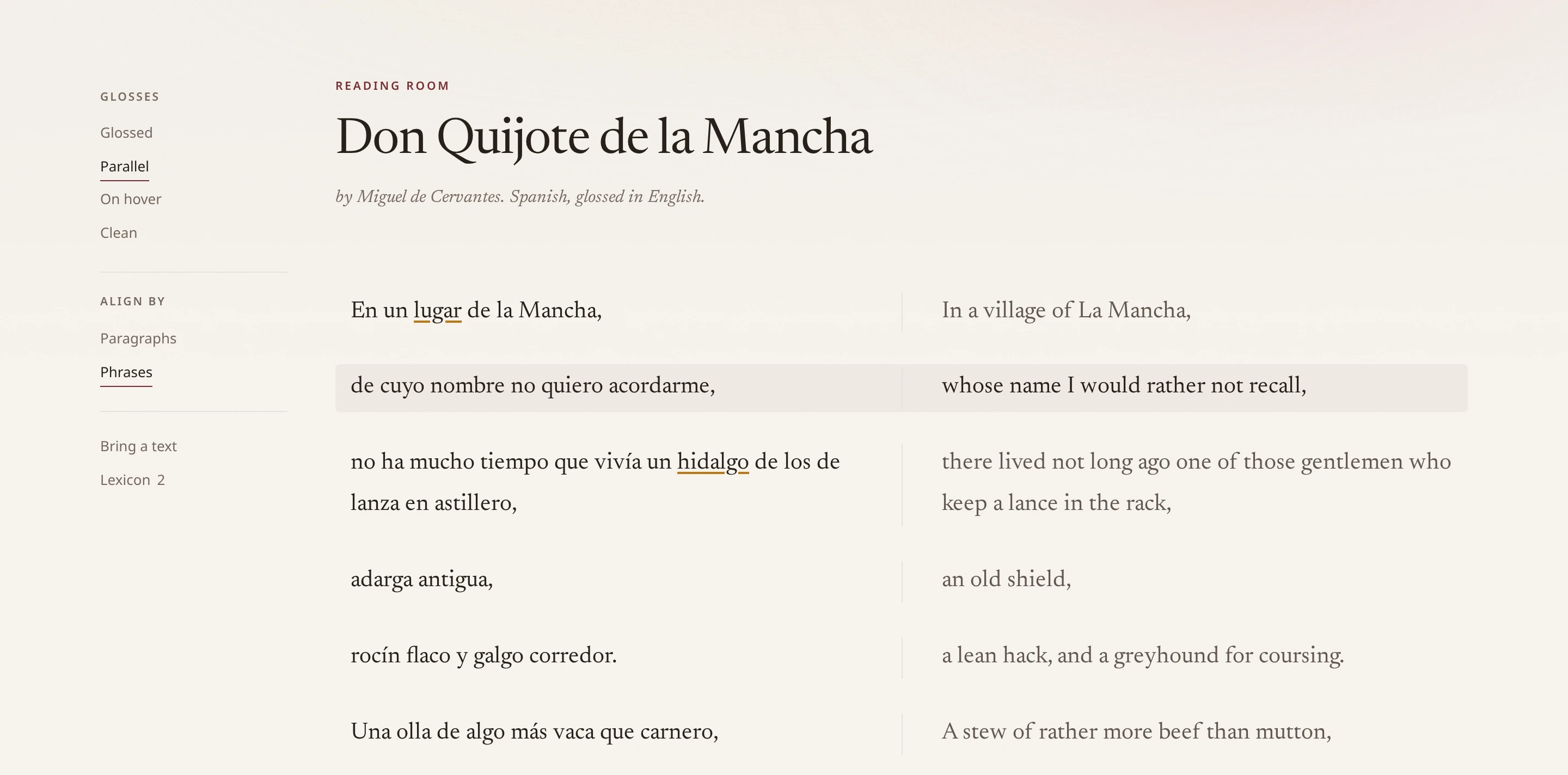
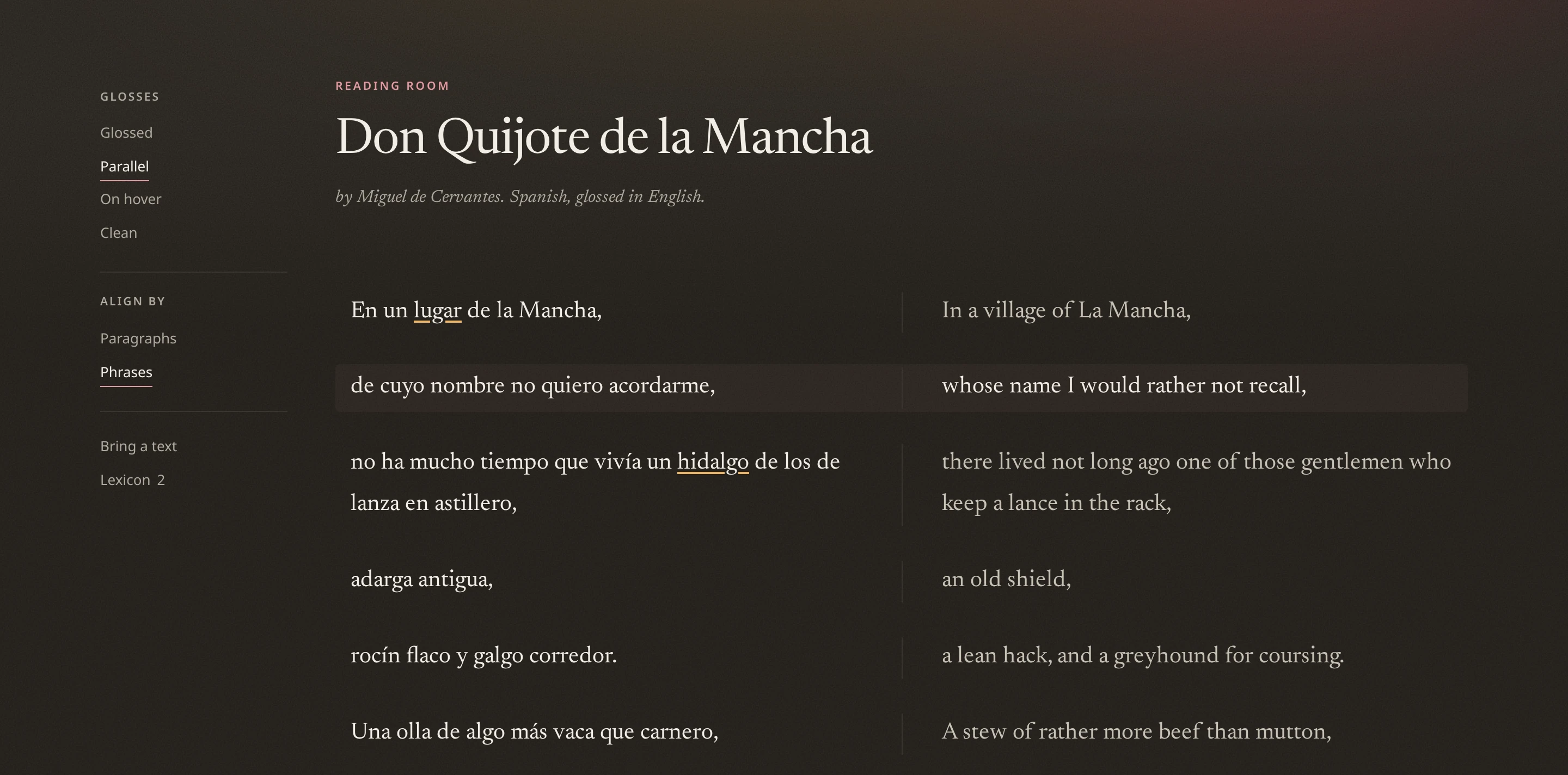
- Aligns the two languages by paragraphs, sentences or phrases.
- One pair. The one under the pointer is lit on both sides.
- The original on the left.
- The translation on the right.
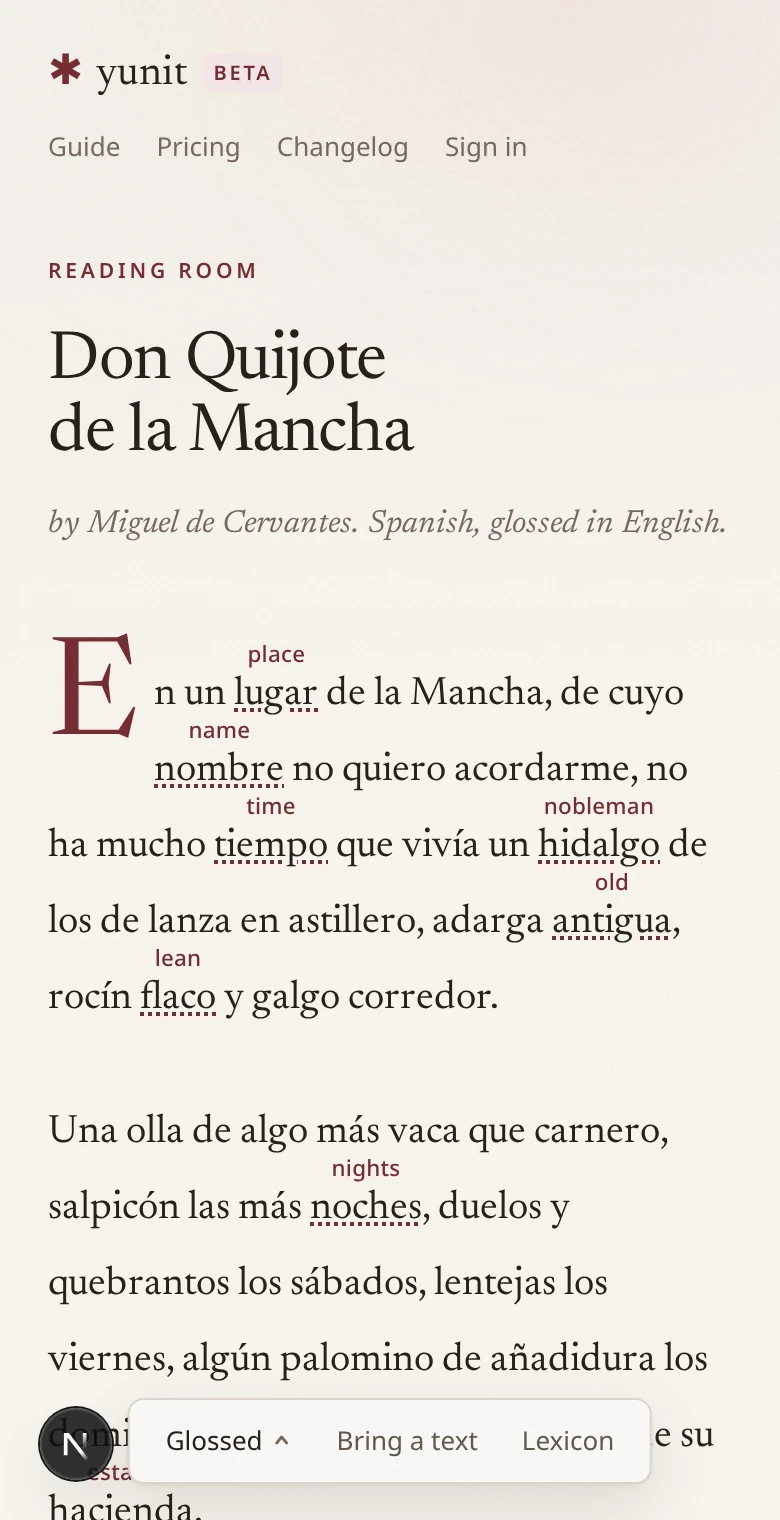
- On a phone the rail becomes this bar.
- The current mode, with the others a tap away.
13Keys
Keys
Anywhere yunit is on.
| Alt + hover | Translates any word, marked or not. |
|---|---|
| Alt+Shift+D | Dual language on or off. |
| Alt+Shift+L | The lyrics panel on YouTube. |
| Alt+Shift+C | Starts or stops live captions on YouTube. |
| Alt+Shift+S | Dual subtitles on YouTube, on or off. |
| Space | Reveals the translation on a card or in a review. |
| Esc | Closes whatever is open. |
If something is missing from this page, write to support@yunit.app. The changelog says what has changed.